
Create a Batch Action - Retro Claim Orders
For clients in the restaurant or retail industries, the Batch Actions screen allows Customer Service Representatives to retroactively associate an anonymous Order with a Member. This process is referred to as a "retro claim," and allows the Member to correctly receive any Metrics that they should have earned from that Order.
Note: Retro claims must take place within thirty days of the Order Date.
The Batch Actions screen lets you execute multiple Retro Claims by importing a comma-separated values (CSV) file that contains a header row and the following two columns:
-
member_id: The Member ID for the Member claiming the Order
-
integration_id: The Order ID for the Order being claimed.
To create a Batch Action for retro-claiming Orders:
-
Select Members from the top navigation bar, then select CSR > Batch Actions from the side navigation menu. The Batch Actions screen is displayed.
-
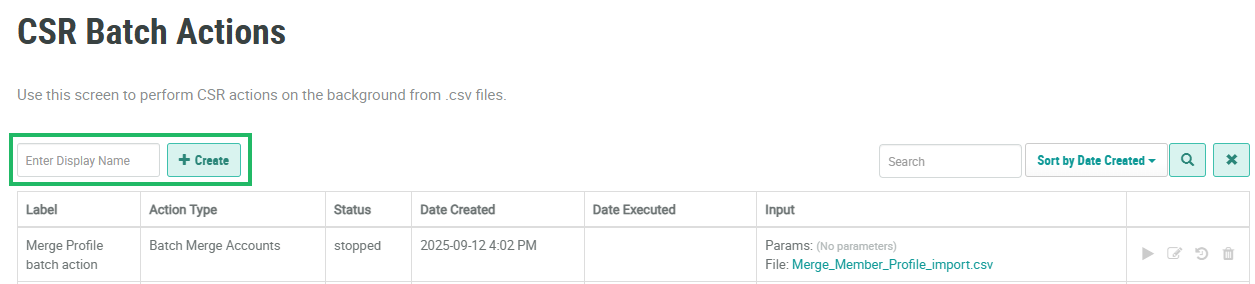
In the Enter Display Name field, enter a name for the new Batch Action.
-
Click Create. The Edit CSR Batch Actions pop-up window is displayed.
-
The Display Name field is populated with the name you entered above. Optionally edit this name.
-
Optionally, in the Description field, enter a description of this Batch Action.
-
From the Action Type drop-down menu, select Batch Retro Claim.
-
Next to Input File, click Choose File. Browse to the CSV file on your local PC and click Open.
-
Click Save.
For more information on how to execute the Batch Action, please see Execute a Batch Action.
